 NyxBoost
 0.30.2
NyxBoost now uses less memory in the tray
The window in the tray gives back its graphics memory when nothing is running and reopens on the same tab, and scan and undo results are more honest.
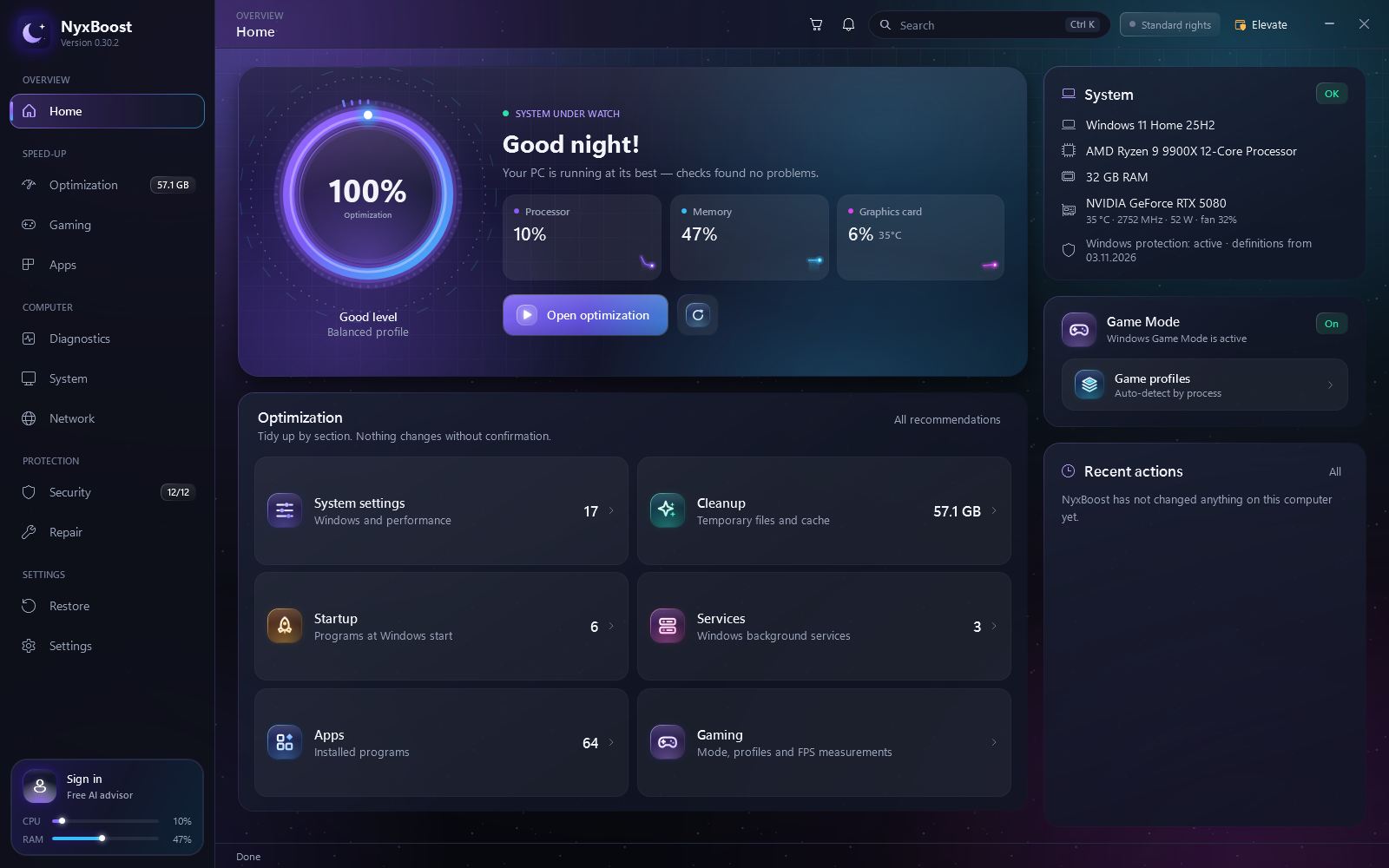
Close the window, NyxBoost waits in the tray
After more than 45 seconds in the tray with nothing running, NyxBoost really closes the window and gives back its graphics memory. The icon stays in the tray, and the window opens again on the same page, tab and place. A Defender scan or the miner search is never cut off.
How much memory comes back depends on the graphics card, the driver and the open pages, so we do not promise a number.
- Window closedwith the × button
- NyxBoost in the trayafter 45 s with nothing running, memory goes back
- Same tabpage and place are kept
A scan result you can read at a glance
The event log in System checks groups the same records: the first 10 groups, the rest under Show more, and the full text opens and can be copied. Defender's threat history is grouped too, and NyxBoost names the scan result as it is: the scan reported no unresolved threats, found and removed, threat awaiting action, a failed scan or an unknown result.
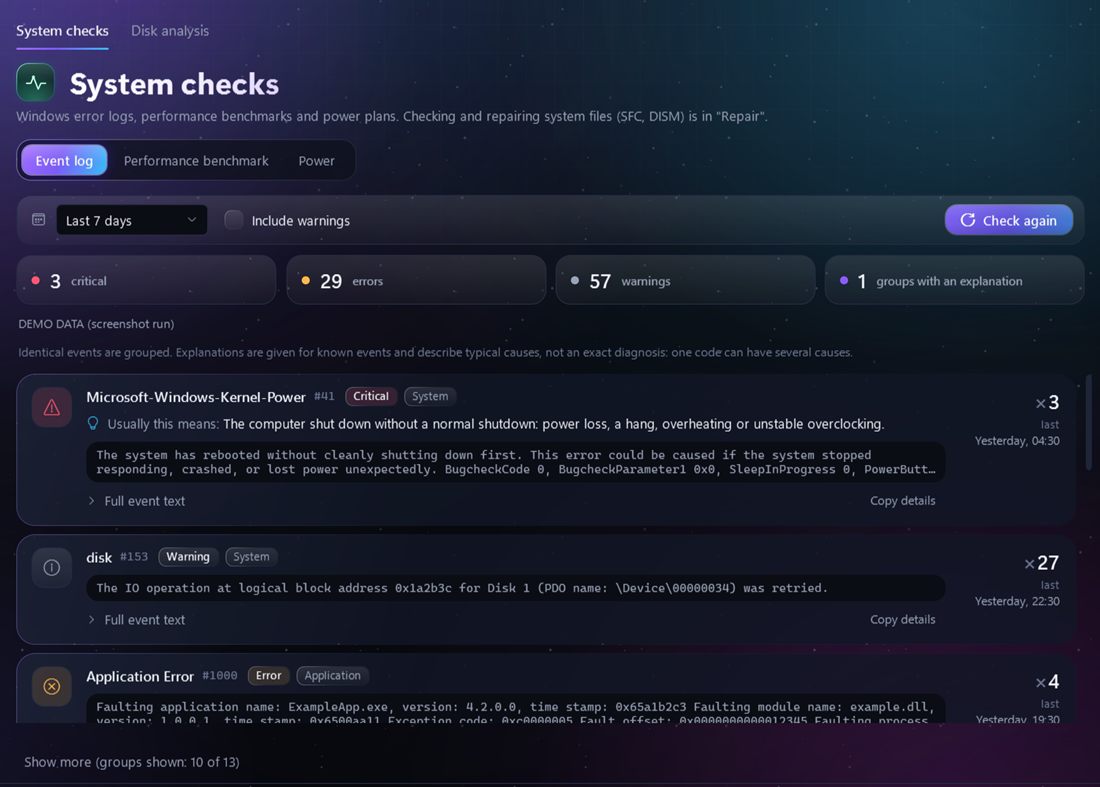 Sample data
A compact window with nothing cut off
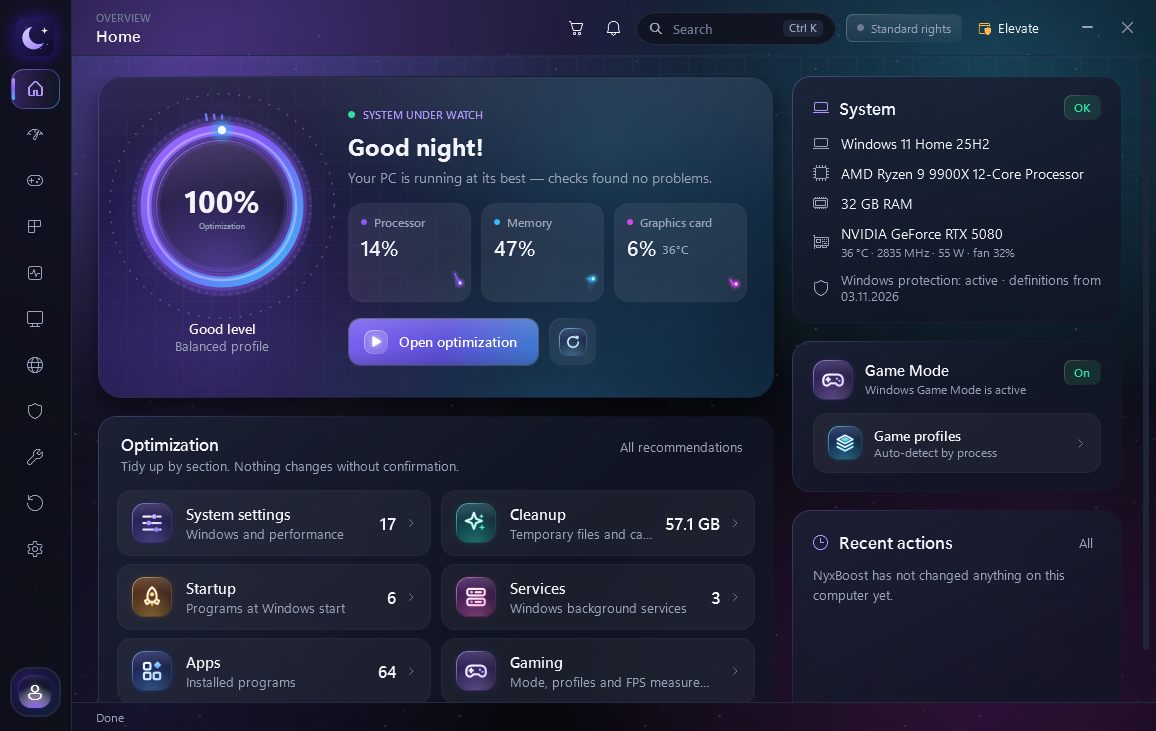
In the compact window Home scrolls instead of squeezing its rows, and confirmation windows and the protection definitions date are shown in full. Small action buttons are now crisp Windows icons in the colors of the chosen scheme.
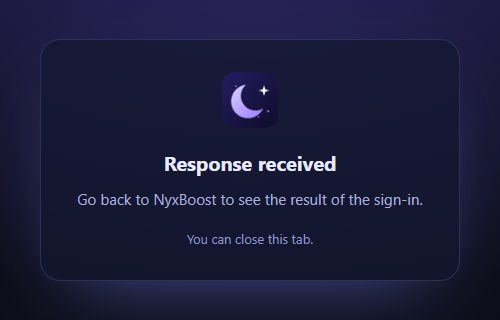
Google sign-in ends on the nyxboost.com "Response received" page instead of an internal address. NyxBoost itself shows the result.
All changes in 0.30.2
22 changes, by topic
Memory, tray and wallpaper5
- Video wallpaper no longer piles up memory: once the video is turned off, the memory and video memory it used go back to the system.
- The window closed to the tray gives back its graphics memory: after more than 45 seconds in the tray with nothing running (an operation, a dialog, onboarding, the tour), the window is really closed. It opens again on the same page, tab and place. Starting NyxBoost again opens the window from the tray too.
- A scan is not cut off: while a Microsoft Defender scan or the miner search runs, the window stays in the tray, and a new look or the restart for another language waits until it ends. Your choice is kept.
- The tray panel shows live numbers: while it is open, CPU, memory and graphics card load keep updating even with the window hidden in the tray. Close the panel and the sampling stops.
- Wallpaper: a monitor change reloads the wallpaper once instead of several times; if pausing Wallpaper Engine fails, NyxBoost tries again once a minute; ready-made sets line up in one column in a narrow layout; the memory label explains that it covers all of NyxBoost — the window and the wallpaper.
Windows tools and drawing2
- System tool messages are readable: with Windows' "Unicode UTF-8" option on, answers from netsh, powercfg, sfc and other tools are read in the right code page.
- The window background, the grid and the star dust are drawn once instead of on every frame of the drifting lights. It looks the same. The Store apps list opens without freezing.
Security and checks3
- A more honest Microsoft Defender result: NyxBoost tells "the scan reported no unresolved threats", "found and removed", "threat awaiting action" and a failed scan apart by the list of threats in the scanner's output, and when it cannot, it says the result is unknown. A stopped or failed scan makes the security report incomplete instead of "all clear".
- Defender threat history in groups: repeated records of one threat in one place form one card with the number of records and the last known result; the path is shown without the internal "file:_" prefix.
- The event log in Diagnostics: the first 10 groups, the rest under Show more; the full text opens and can be copied. The explanation is labeled as a typical cause. If Windows refused to read the log or there are more than 20,000 records, NyxBoost says so.
Undo and the cart5
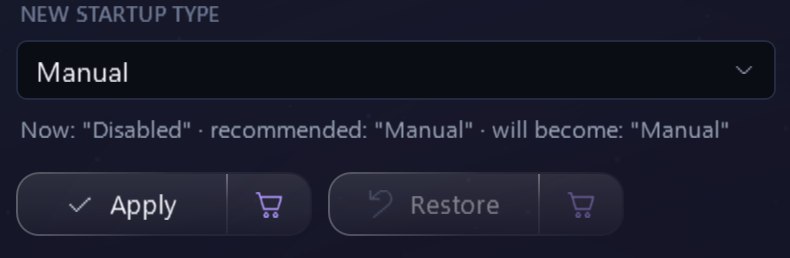
- A clearer services pane: current state and startup type are shown apart, purpose and consequences are always in view, and disabled buttons say why. Restore first shows the current and the saved startup type, and the backup is removed only after Windows confirms the restored type.
- An honest Full uninstall status: when some traces were removed and others were not, the Restore entry says Partially applied, with the reason.
- Undoing a Full uninstall brings back only what was removed: registry values and PATH entries are saved one by one, so the undo does not bring back old neighboring values or lose paths added later. A task created again or changed is not overwritten. Backups made by earlier versions are restored whole, after a confirmation.
- A more careful undo in Restore: values from a backup are written only if they belong to that setting; if the current state could not be compared with the saved one, NyxBoost asks instead of overwriting it silently. The Restore counter in the sidebar matches the Can be undone tile.
- Uninstalling a program from the cart counts only once the program is gone from the installed list; a cancelled or unfinished uninstall is shown as such. Automatic Game Mode no longer misses a game started while the change history was briefly unavailable.
Settings, server answers and Premium3
- Safer settings import and reset: a file with empty values is refused with a clear reason or gets the defaults, settings change only once they are written to disk, and this PC's cart is kept. Sign-in data is written so that an interrupted write cannot spoil the file.
- A wrong answer is never shown as success: an invalid answer from the update server is a failed check, not "you have the latest version"; a refused licence document does not replace the previous one. Error reports are offered only for the current version.
- Premium and update protection: color schemes and the Focus layout cannot be turned on without Premium by editing the settings file or by launch options; Premium is not extended by setting the clock back or by an old server answer; Factory reset never installs a version older than the installed one.
Interface and sign-in4
- Icons: section icons no longer look squeezed in the compact and standard window sizes; small action buttons use crisp flat Windows icons in the colors of the chosen scheme; delete, the change cart and undo no longer look alike, and privacy, administrator rights and disk analysis have their own symbols.
- Names without repeats: the menu groups are Speed-up, Computer and Protection; Diagnostics → System checks, Security → Antivirus and threats, plus General settings, Operations log and Connection check in Network. The restart reminder shows the names of changes in the current language, even if they were applied while another one was on.
- Fixed how the compact window looks: with the sign-in reminder shown, Home scrolls instead of squeezing its rows; the confirmation window and the protection definitions date are shown in full; the PREMIUM badge is readable on a selected tab and sits under the name on cards; addresses in Active connections no longer overlap; dialogs follow the chosen window size.
- After signing in with Google, the browser tab stays on a nyxboost.com page that says "Response received", not on a 127.0.0.1 address; NyxBoost itself shows the result of the sign-in once all checks are done.
Get 0.30.2
NyxBoost is free for Windows 10 and 11. If you already have it, the update arrives in the app.
Download NyxBoost