 NyxBoost
Optimization Insights, a graphics card choice for games and a safer change history
The Advisor sorts its findings into Optimization Insights, a game can be assigned to the dedicated graphics card, the change history is saved with a spare copy, and the tray icon opens a new panel.
What changed
The Advisor and Restore
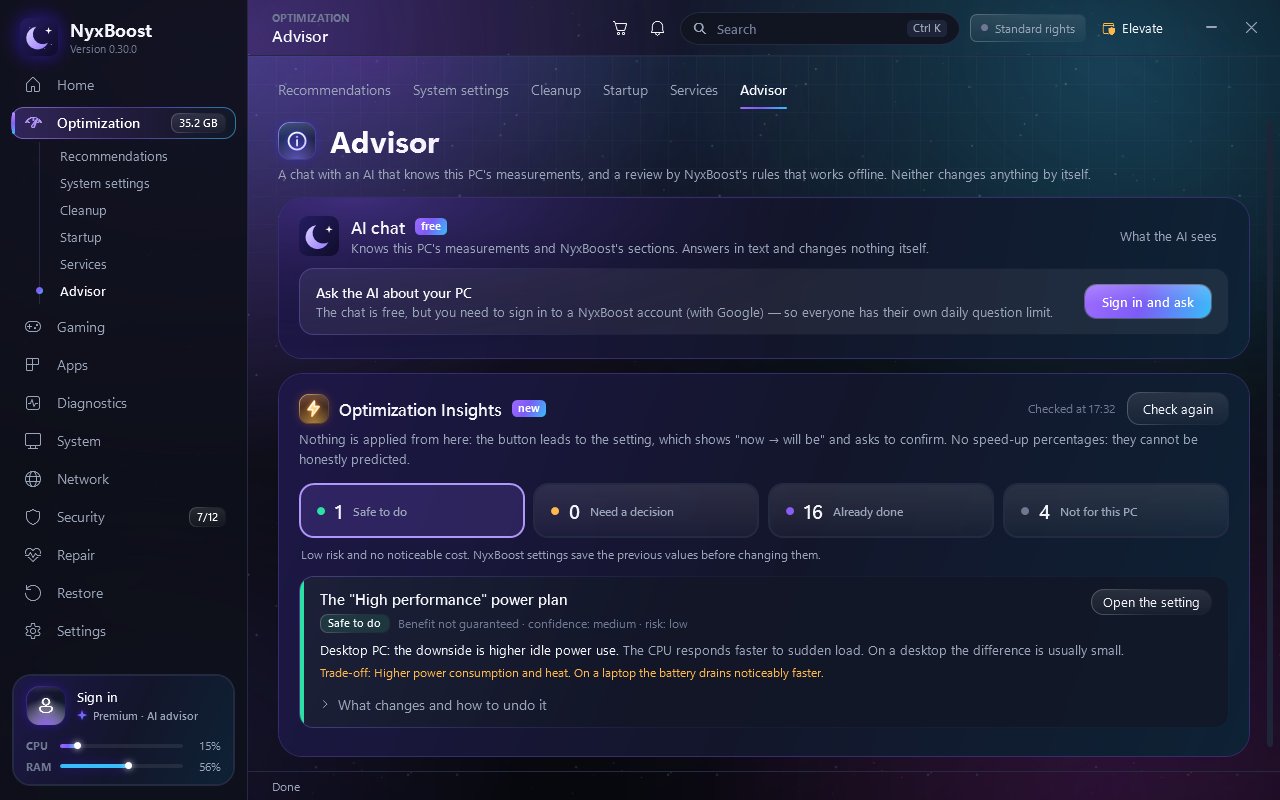
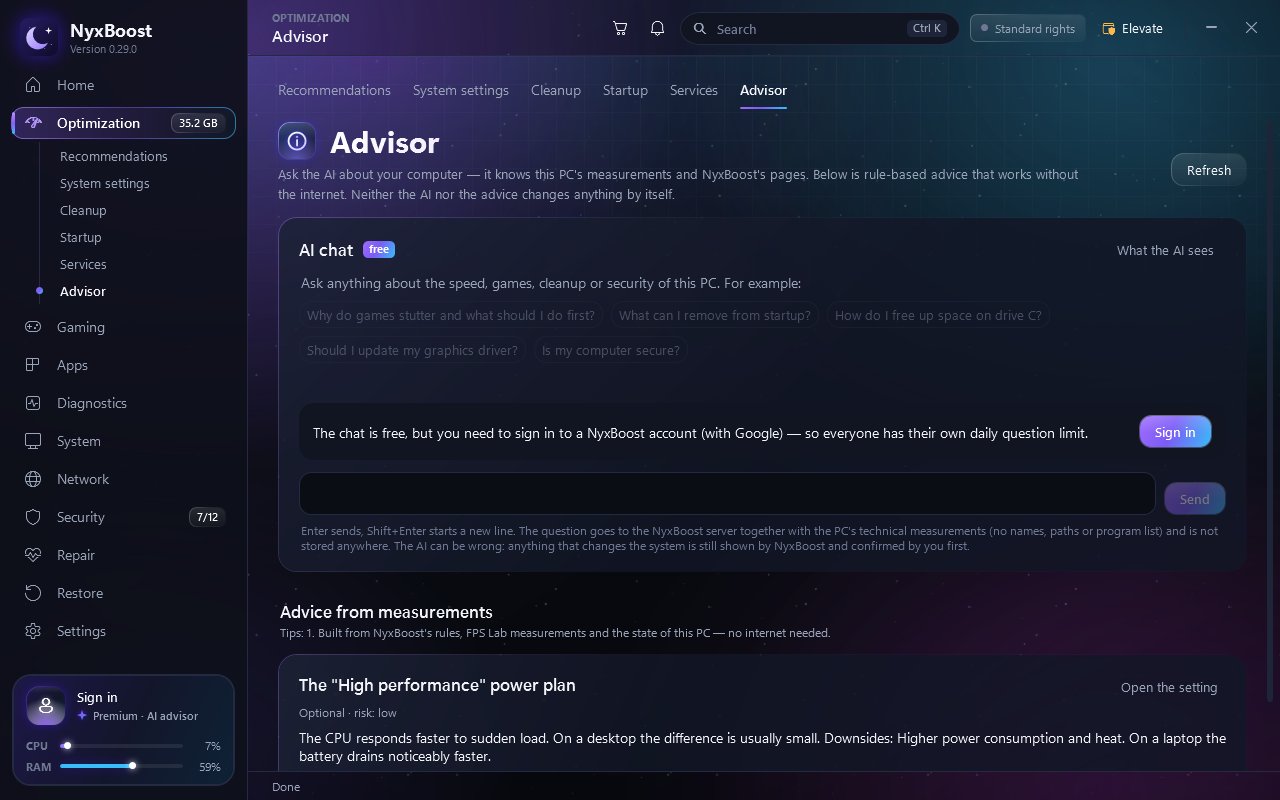
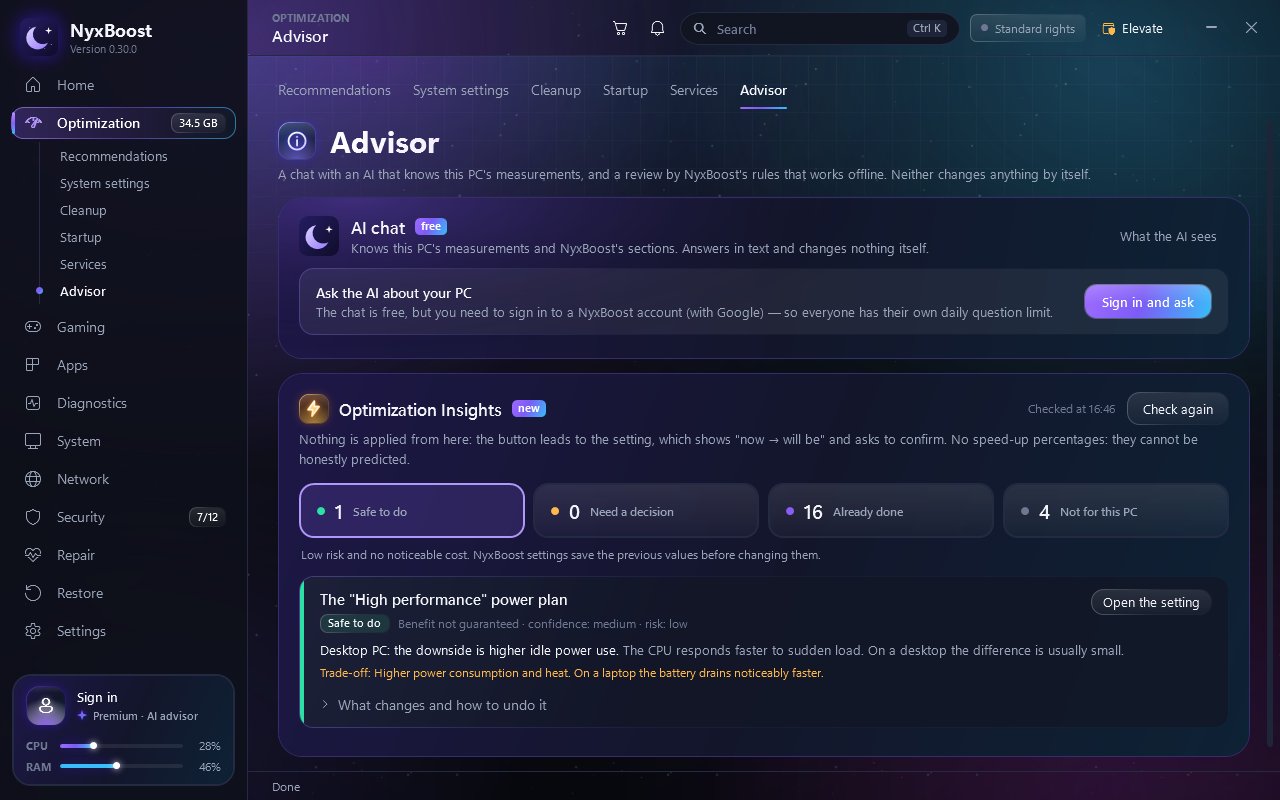
- Optimization Insights in the Advisor: findings are sorted into four groups — "Safe to do", "Need a decision", "Already done" and "Not for this PC". Each card shows the risk, whether a restart is needed and what you give up; "What changes and how to undo it" shows the current and new values and how to roll back. Nothing is applied from the Advisor: the button opens the setting itself. No "N % faster" promises. FPS Lab advice has its own section. When you are signed out, the AI chat folds into one "Sign in and ask" line.
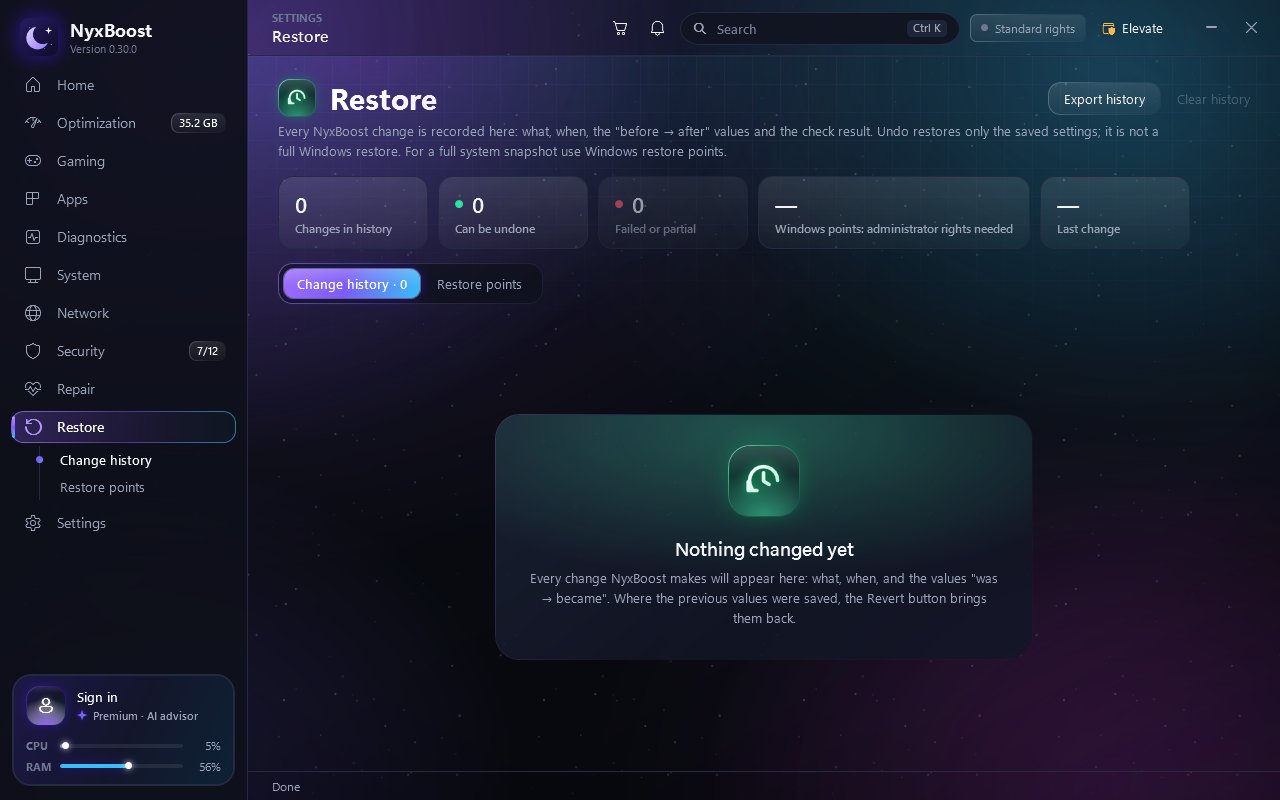
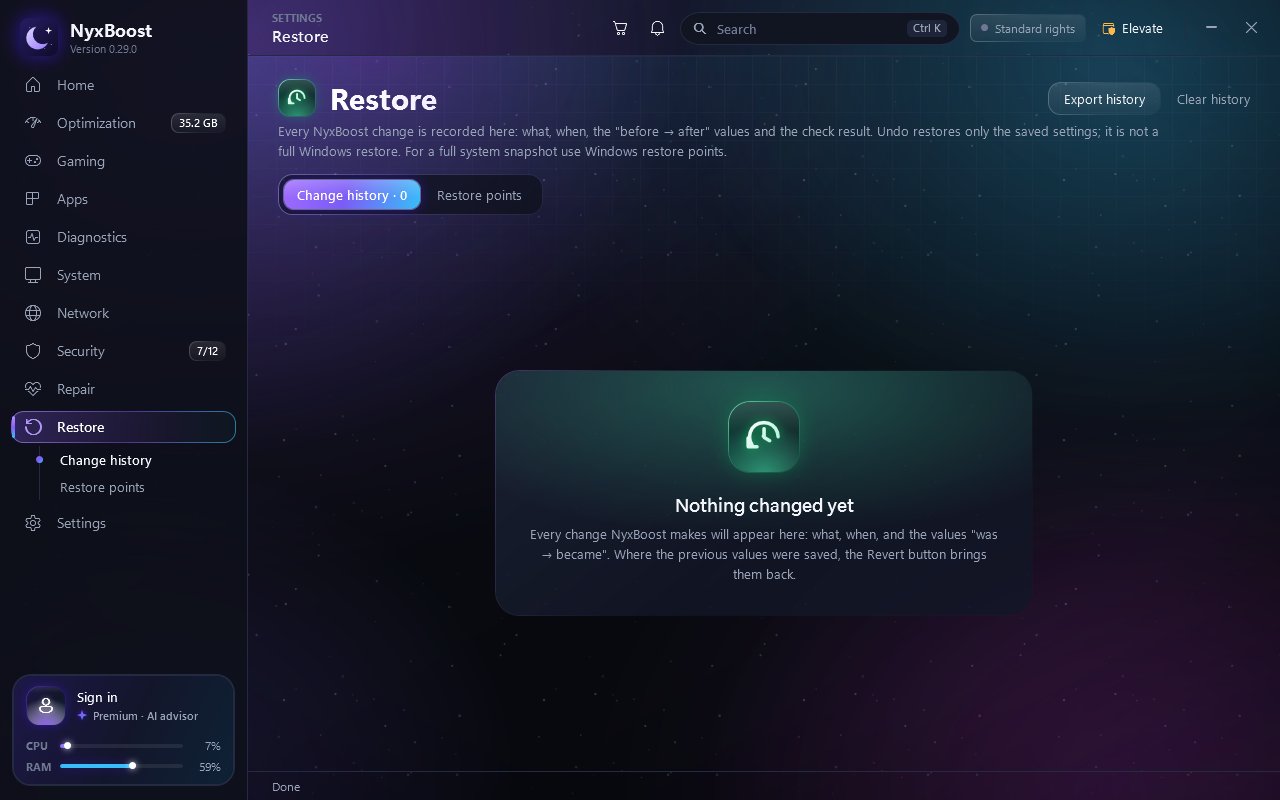
- Restore: a summary on top — how many changes, how many can be undone, how many failed, which restore points exist. Changes that can be undone come first; when undo is unavailable, the reason is shown under the button. Restore points show what created them and how long ago. After creating a point, NyxBoost checks that it appears in Windows' list and reports success only then. If Windows accepted the request but no new point appeared, NyxBoost says so and names the likely reason: by default Windows creates no more than one point in 24 hours. If an error occurs, its code is shown.
Games and the tray
- Graphics card choice for games: on PCs with integrated and dedicated graphics, Game readiness can assign a game to the dedicated card through Windows' "High performance" setting. No administrator rights are needed; the setting applies from the game's next start and can be undone there or in Restore. Which card the game ends up using, and how that affects it, depends on Windows, the drivers and the PC's configuration.
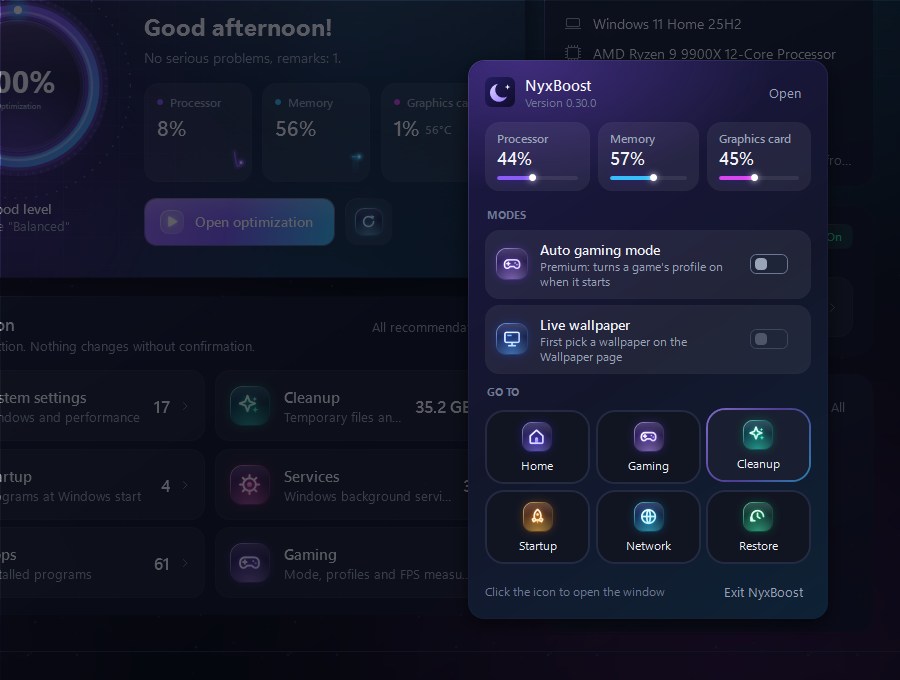
- Tray: when NyxBoost starts in the tray, it checks the history and interrupted operations at once and shows a notification if something is wrong. Right-clicking the icon opens a new panel: CPU, memory and graphics card load, switches for automatic gaming mode and live wallpaper, the running gaming session with an end button, and shortcuts to sections.
Safer changes and deletion
- Change history protection: the history, backups and the gaming session state are now written to a separate file first and replace the previous one only once fully written; the previous intact copy is kept alongside. If a file turns out to be damaged, NyxBoost uses the last intact copy and tells you; if there is none, it offers to start a new history and removes nothing without your consent. If a file is held by another program (an antivirus or backup tool) or cannot be written, NyxBoost changes nothing on the system and explains why. Changes run one at a time: if another is running, the new one waits or is refused with a clear message.
- Disk analysis: folders open right in the list, and the path above leads back. Before moving something to the Recycle Bin, NyxBoost checks that the drive's bin will take it (network drive, bin turned off, file larger than the bin). If not, nothing is deleted, and permanent deletion is offered in a separate window with Cancel as the default.
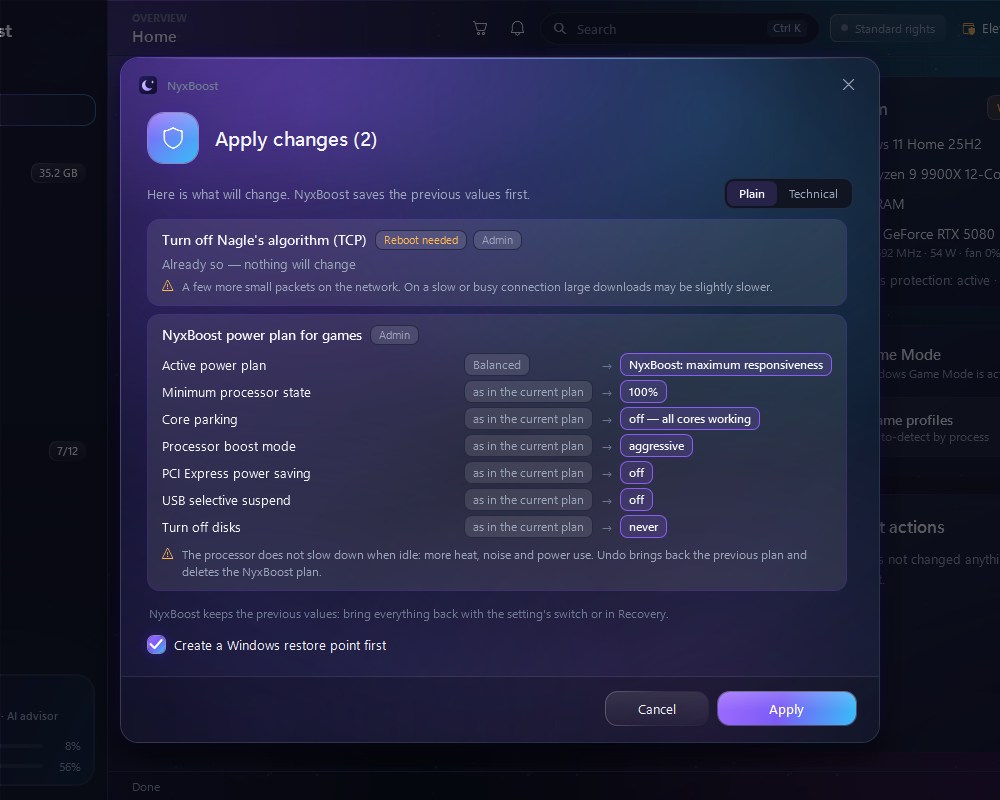
- Change cart: settings that are already as proposed are shown apart and not applied again. Things already done (such as an update no longer needed) count as done, not failed; an item that cannot be found says what to do.
The look
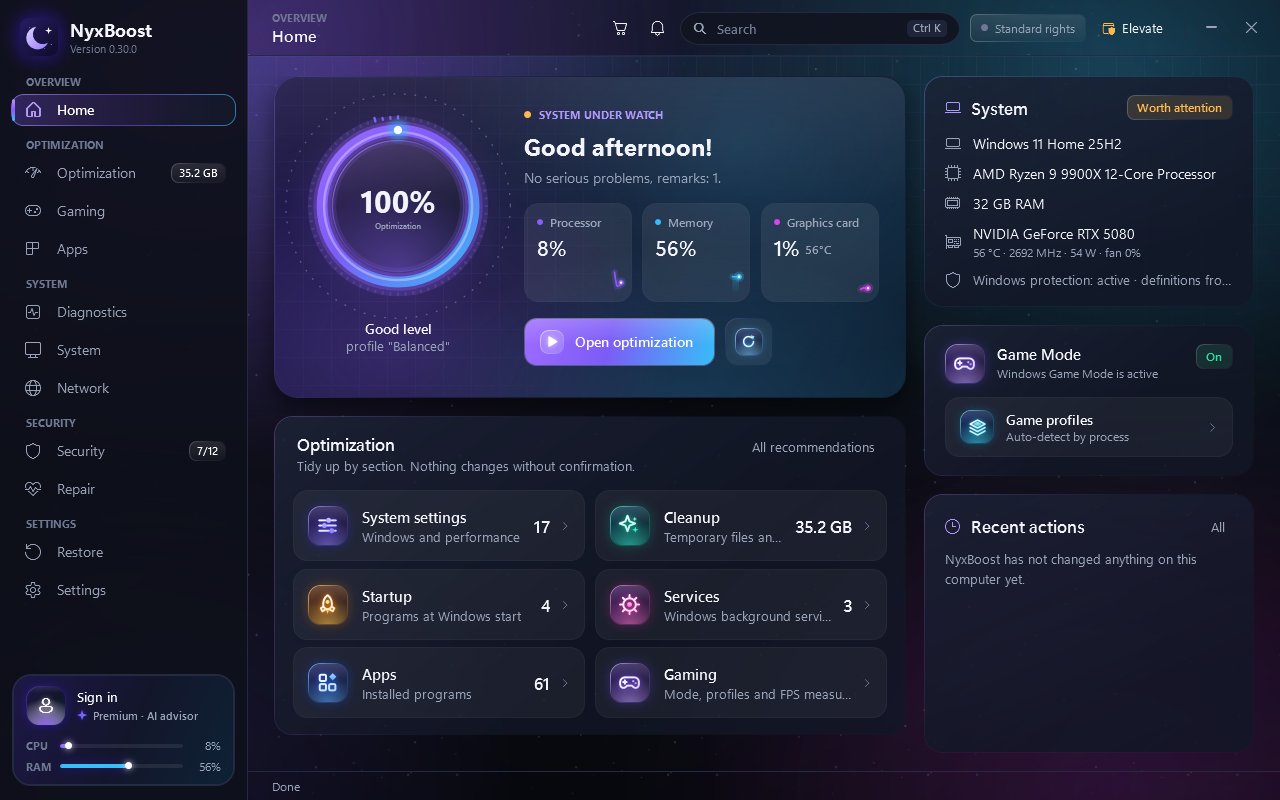
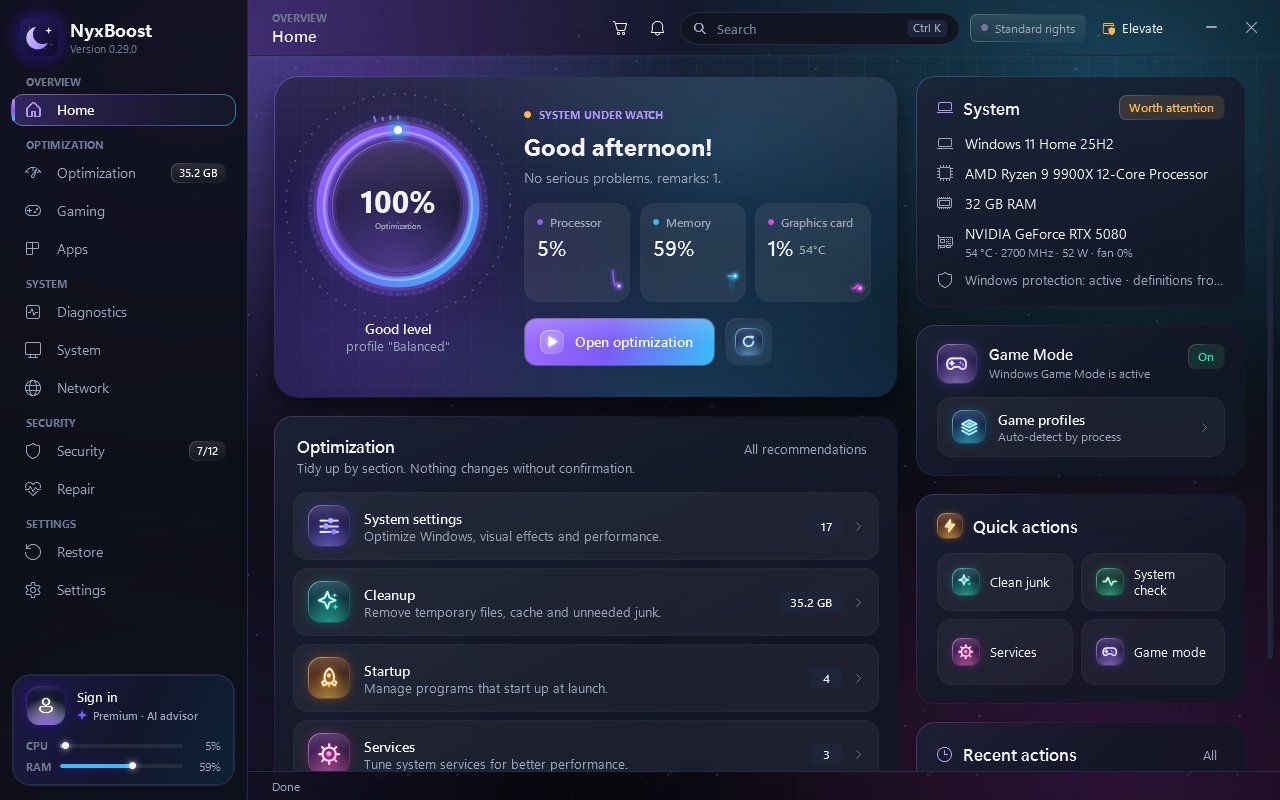
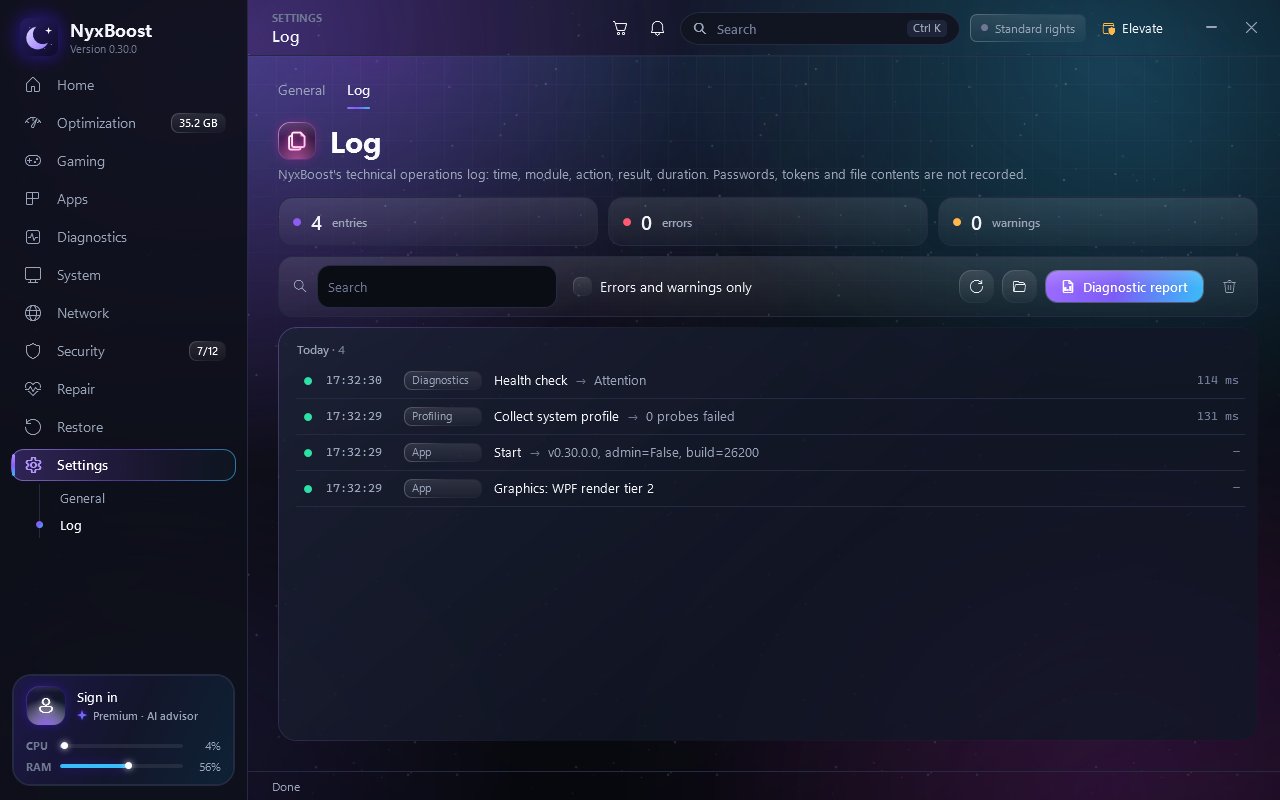
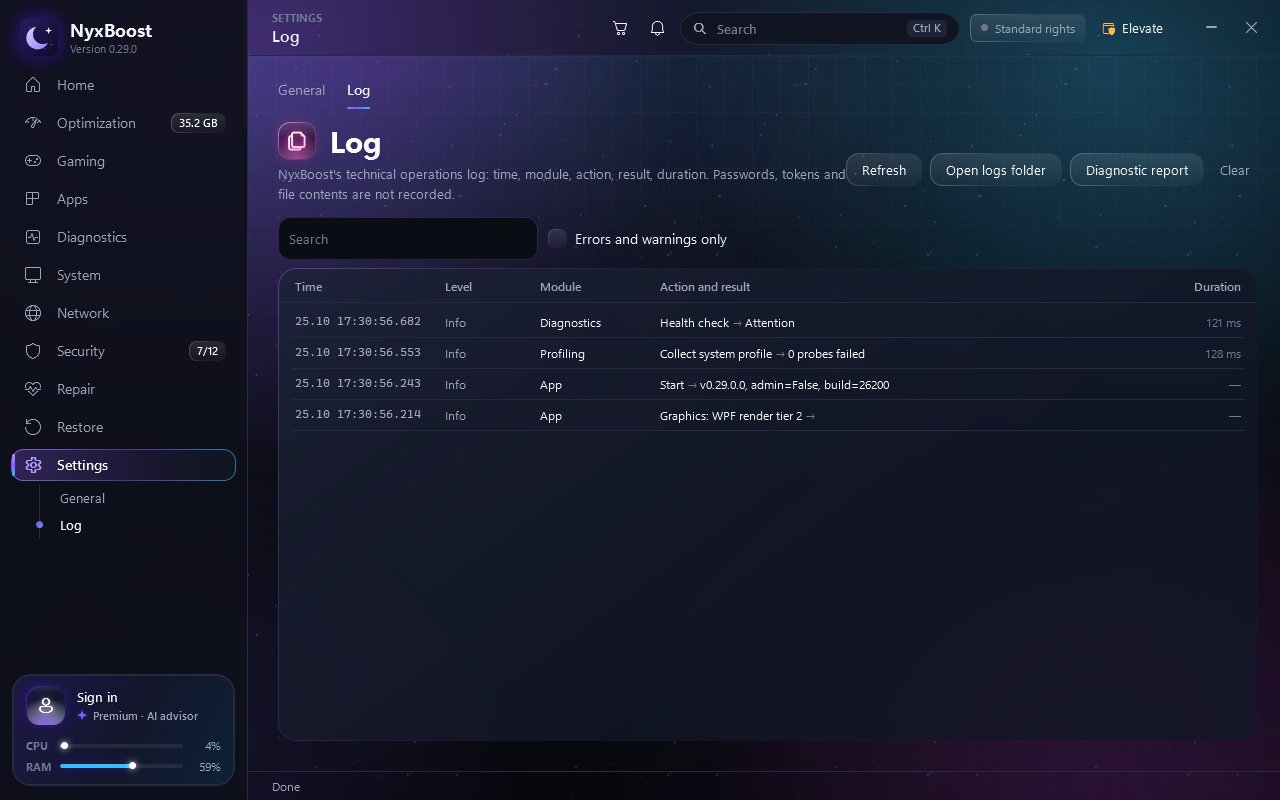
- New look: the home page fits the window without scrolling, with a Gaming section and recent activity using the full height. Reworked: Event log, Log (grouped by day), Services (configurable ones first), Startup (program icons), app access to the camera, microphone and other permissions, system information and network. Confirmation, uninstall, crash report and "What's new" windows use NyxBoost's own design. The feature tour now shows Optimization Insights and the AI chat.
- Charts: hovering shows the value with its unit, the scale no longer jumps, and "No data" is shown when there is none.
- Sharpness: text in cards, windows and tooltips is crisper. The large window size is 1564 × 989 at 110 % interface scale: more room, not just bigger.
- Live wallpaper: on Windows 11 25H2 a still frame is shown and no animation runs in the background. Next to Wallpaper Engine, NyxBoost's wallpaper stays visible and Wallpaper Engine is paused meanwhile. Built-in scenes update 20 times a second instead of 30 (the grid scene 15).
Fixes
Settings and services3
- A registry value NyxBoost cannot read is no longer shown as "not set" or counted as applied.
- A service on "Automatic (delayed start)" is no longer reported as unverified.
- A service start type saved in another interface language is no longer flagged as changed.
Uninstall and updates2
- A full uninstall is recorded in the history first, so an interrupted one shows up in Restore.
- A winget update that answers "already up to date" counts as a success.
Interface4
- The button on information messages was mislabelled in English, Spanish and Chinese.
- Dates and sorting follow NyxBoost's language rather than Windows'.
- Clicking outside a text box takes the cursor out of it.
- A quick click right after the feature tour no longer opens a section by accident.
Before and after
How it works
- Step 1Write
The new version of the file is written separately first.
- Step 2Replace
The previous file is replaced only once the new one is fully written.
- Step 3Spare copy
The previous intact copy is kept alongside.
- Step 4A problem
A damaged file is replaced by the last intact copy; if the file is held or there is no intact copy, NyxBoost changes nothing and explains why.
- Step 1Choose
Open folders right in the list and pick what to remove.
- Step 2Check
Will this drive's Recycle Bin take it? Network drive, bin turned off, file larger than the bin.
- Step 3Recycle Bin
If it will, the item goes to the Recycle Bin and can be restored from there.
- Step 4Otherwise
Nothing is deleted; permanent deletion is offered in its own window, with Cancel as the default.
- Step 1Games
Game readiness lists the games found and the card Windows starts each one on.
- Step 2Confirm
Pin one game or all; a window lists them before anything changes.
- Step 3Windows setting
Windows' own "High performance" preference, no administrator rights; it applies from the game's next start.
- Step 4Undo
An Undo button on the same page, or in Restore.
New in pictures
Thank you
Thank you for using NyxBoost. On 0.28.9 and 0.29.0, version 0.30.0 arrives in the app; on 0.28.8 or earlier, download it once from this site.
Download NyxBoost